
Wireless Debug Mode Instructions
Follow these steps from inside the car's infotainment system. Keep the phone hotspot active until the APK installation is complete.
- Establish connectivity. Connect your car's infotainment unit to your mobile phone's Wi-Fi hotspot.
- Access the engineer menu. Open the native Phone app in your car and dial
*#91532547#. - Retrieve identification. The screen will display an IMEI and Chinese text. Note down the IMEI.
- Generate the bypass code. On your mobile phone, visit ahmada3mar.github.io/BYD, paste your IMEI, and generate your unique bypass code.
- Authenticate. Enter the generated code into the car's dialer, then tap
进入(Enter). - Configure debugging. Scroll down to TestTools and select it. Enable Debug mode when USB connected, which is usually required as a prerequisite.
- Enable wireless ADB. Locate and enable Wireless adb debug switch. If a prompt appears asking whether to allow ADB debugging from your computer or device, select Always allow from this device.
- Identify the network address. Go to the car's WLAN settings, tap your connected hotspot name, and open the info icon. Write down the car's IP address, for example
192.168.x.x.
Connect to the head unit with wireless ADB
Make sure your computer is on the same Wi-Fi network as the car. Then run the wireless ADB connection command using the IP address shown in the car's WLAN settings.
adb connect <IP_ADDRESS>:5555If the connection succeeds, check that the head unit appears in your device list:
adb devicesThe device may appear as an IP address followed by :5555. If it says unauthorized, look for an authorization prompt on the head unit and allow the connection.
Install Overdrive
Download the latest Overdrive APK from the GitHub Releases page, then install it with ADB.
Download Overdrive APKInstall ADB if needed
If your computer does not already have ADB, install Android Platform Tools first. After installation, confirm ADB is available:
adb versionInstall the APK
Replace the APK path with the actual file you downloaded.
adb install /path/to/Overdrive.apkIf you are updating an existing install, use:
adb install -r /path/to/Overdrive.apkOverdrive after installation
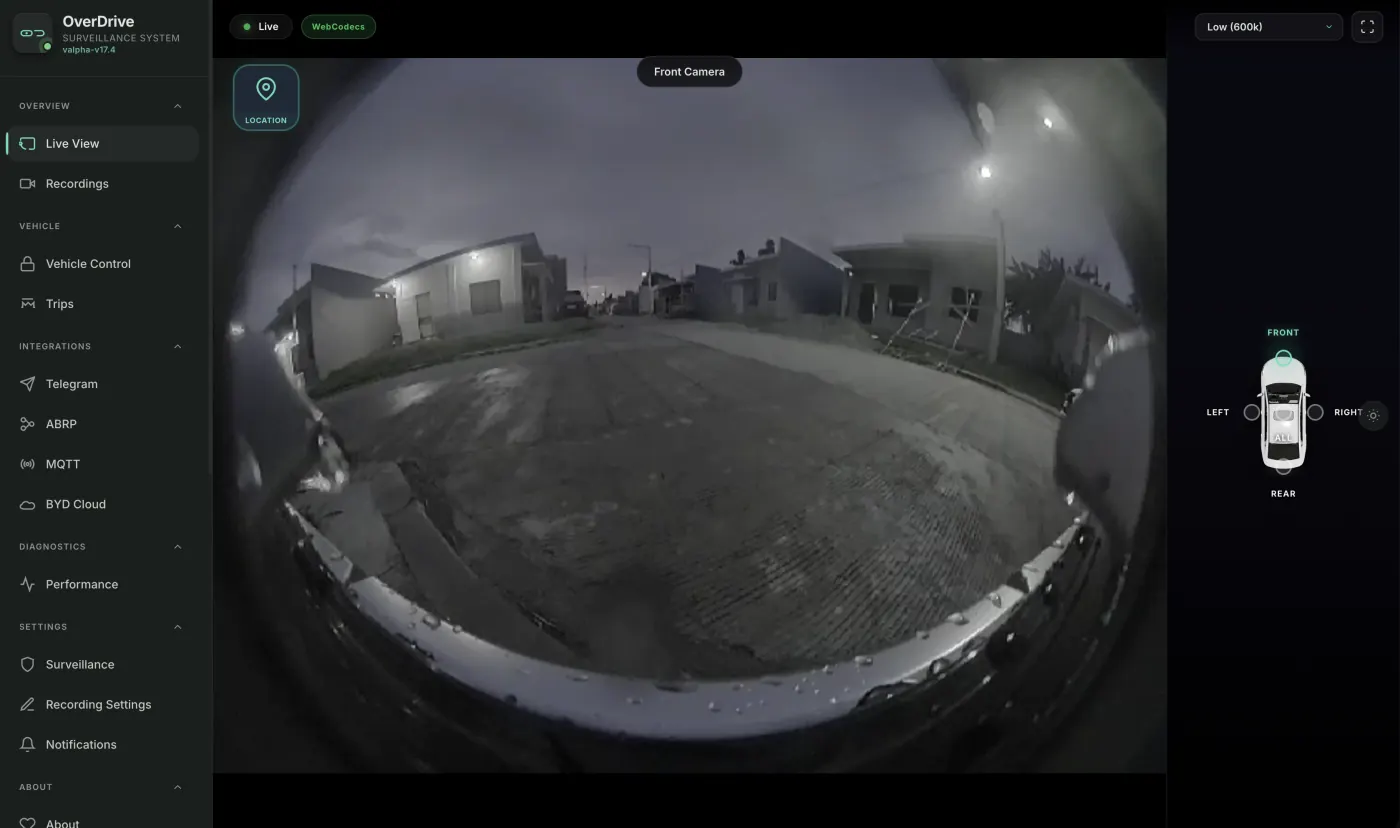
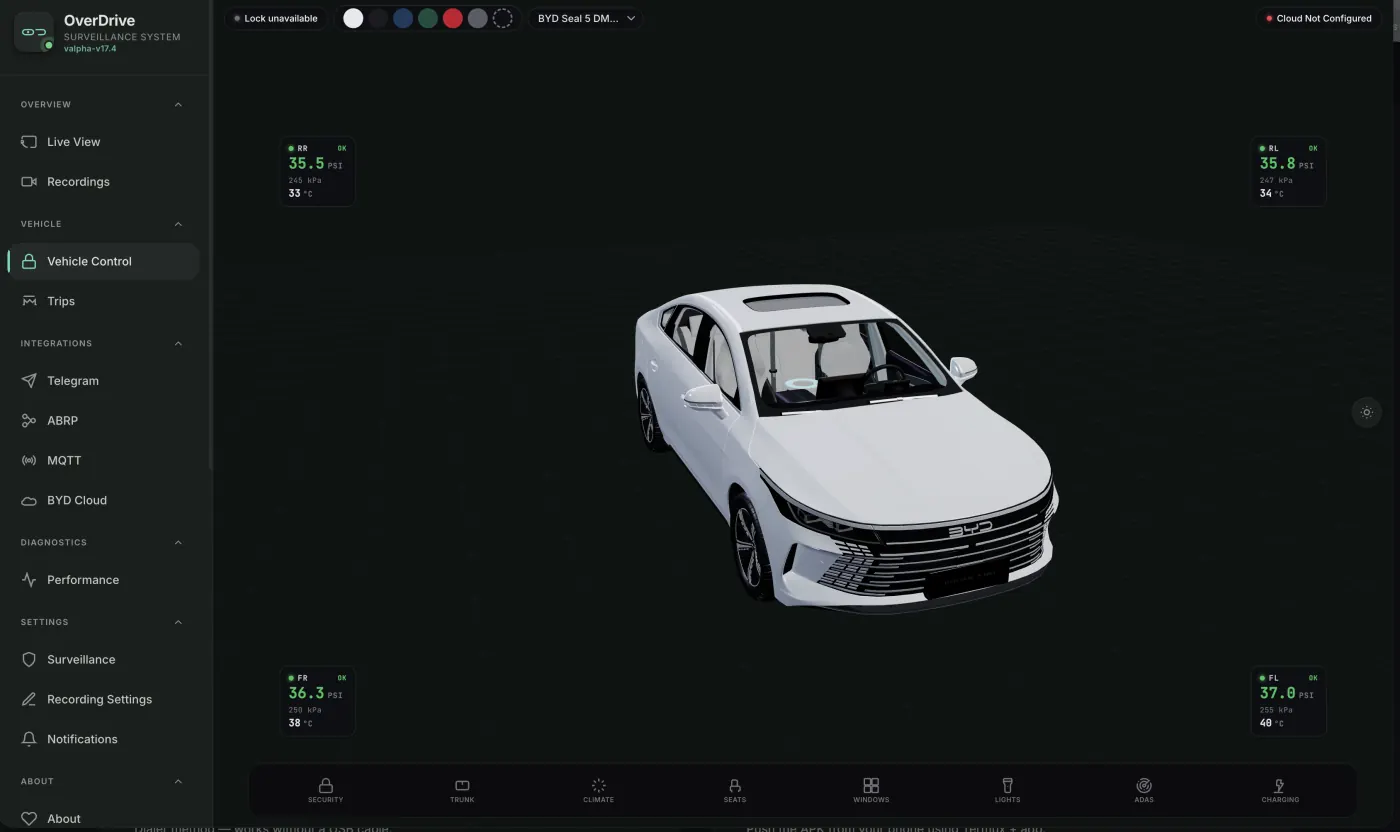
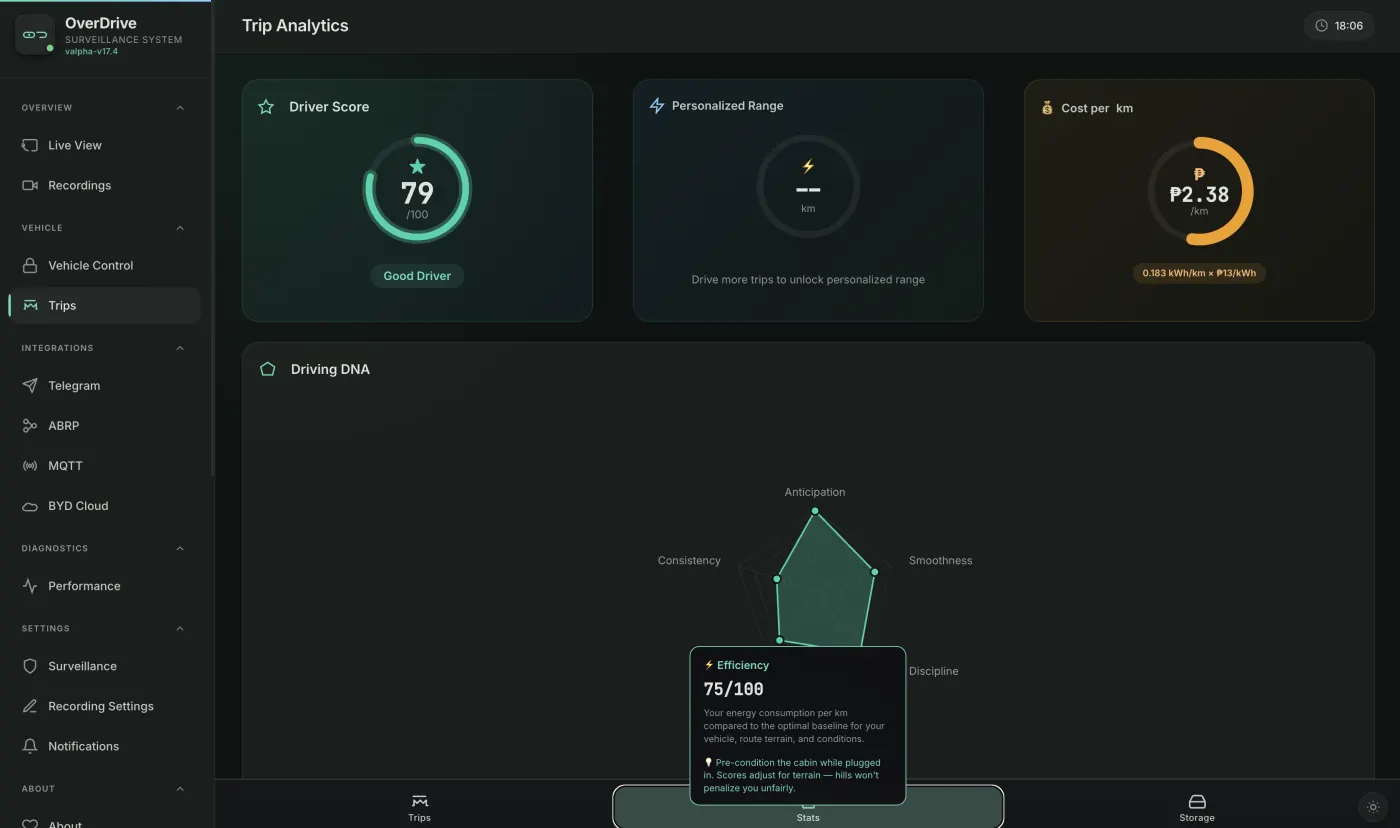
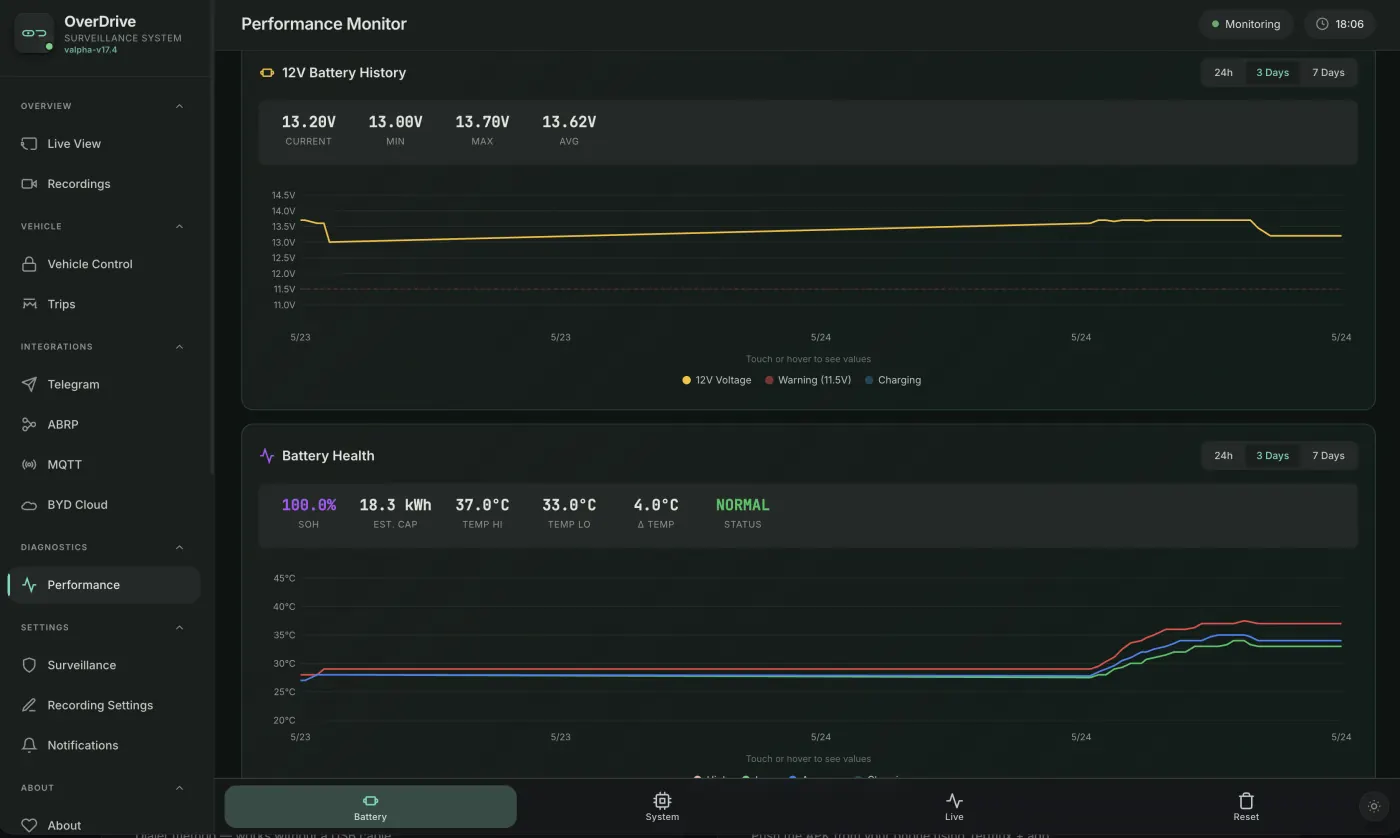
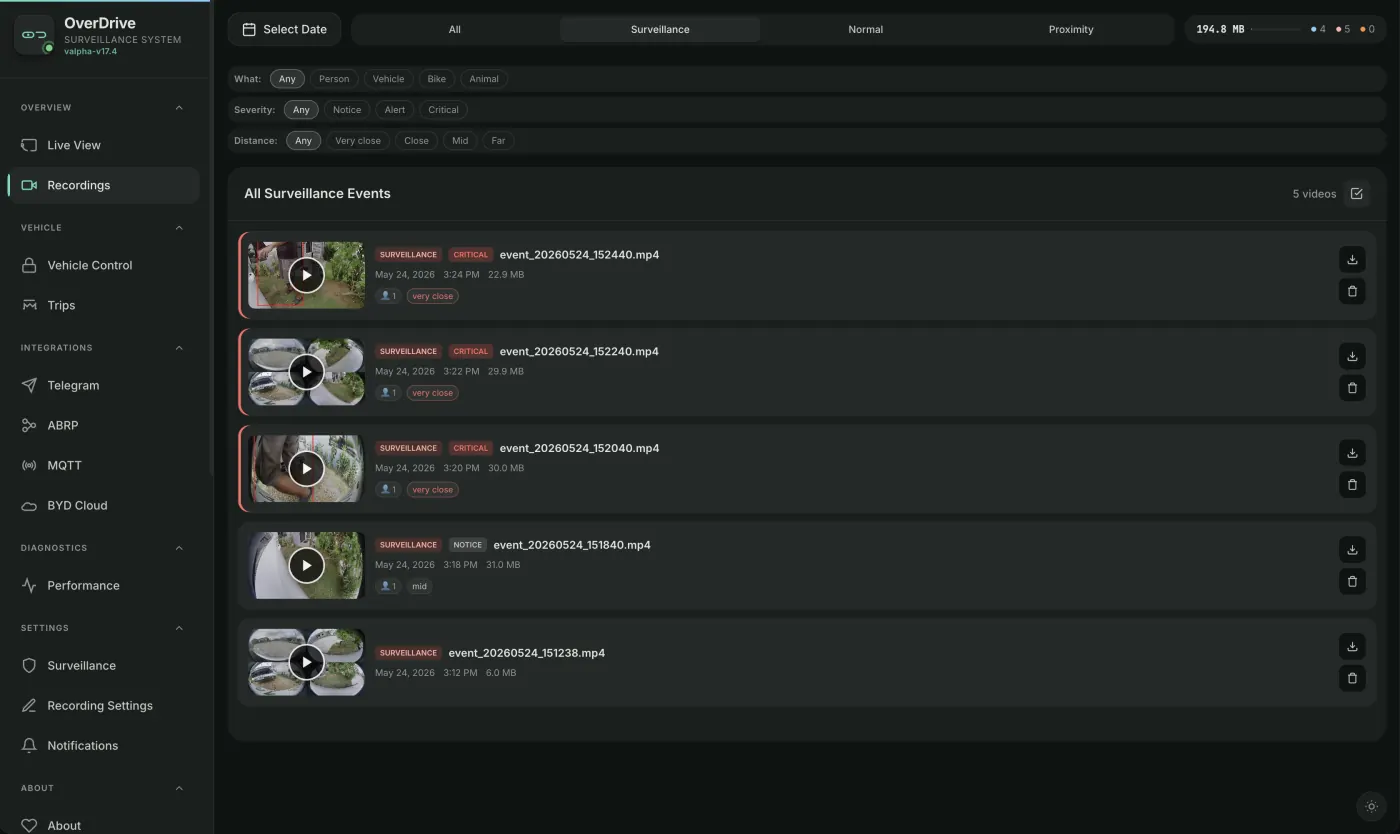
These screenshots show the Overdrive app running on the BYD Seal 5 DM-i head unit after installation. They are included as a visual reference for the installed app, not as part of the wireless debug or ADB setup steps.
Troubleshooting
ADB cannot connect
- Confirm the car and computer are on the same hotspot or Wi-Fi network.
- Confirm Wireless adb debug switch is still enabled.
- Check that the IP address has not changed after reconnecting to the hotspot.
- Try running
adb kill-server, thenadb start-server, then reconnect.
Device is unauthorized
Watch the head unit for an ADB authorization prompt. Choose Always allow from this device, then run adb devices again.
APK install fails
- Make sure the downloaded file is the APK from the Overdrive Releases page.
- Use
adb install -rif Overdrive is already installed. - Reconnect ADB and try again if the wireless session drops during install.
After install
Once Overdrive is installed, disconnect ADB and disable wireless debugging in the engineer menu unless you need it again.
adb disconnect <IP_ADDRESS>:5555Leaving wireless debugging enabled can make the head unit easier to access from other devices on the same network.